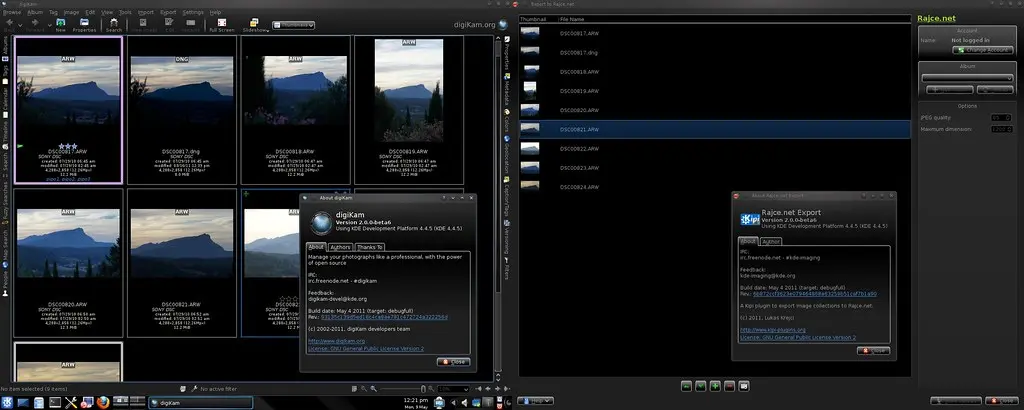
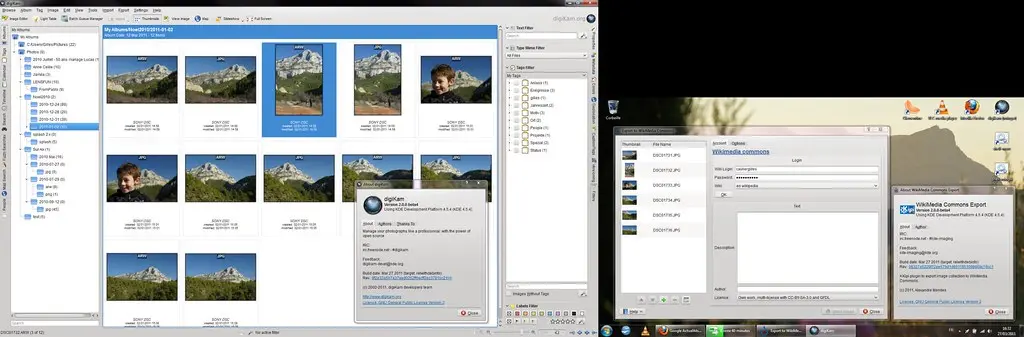
Using the commands tucked under the Import menu, you can offload photos from your camera, storage card, or USB stick directly into the application. What's more, the Import dialog box offers a few clever features that allow you to configure the import operation. Continue to read
WorldLabel has kindly agreed to sponsor a competition for the best digiKam tip, where the winner will bag a cool Ubuntu-based Teo Pro netbook from ZaReason.
The main toolbar in digiKam provides quick access to several tools and features, and you can tweak it to fit your particular photographic workflow. To do this, choose the Settings » Configure Toolbars command. This opens the Configure Toolbars dialog window where you can add, remove, and tweak toolbar buttons. Continue to read
digiKam makes it relatively easy to tag photos. Select one or several photos, expand the Caption/Tags right sidebar, tick the tags you want, and press the Apply button. You can also assign keyboard shortcuts to the often-used tags to speed up the tagging process. Continue to read
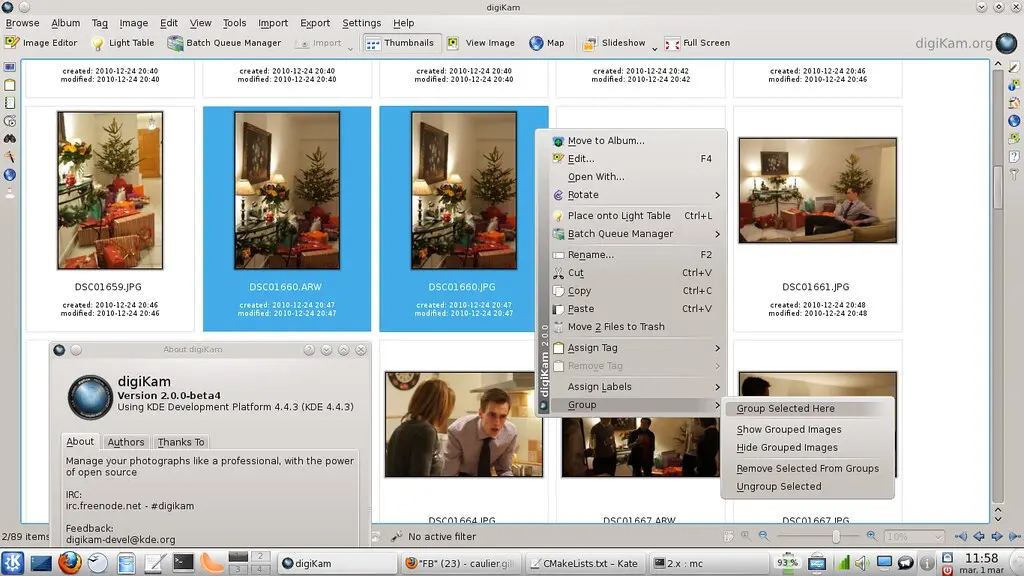
In addition to writing tags, ratings, labels, descriptions, etc. directly into the photos, version 2.0 of digiKam can save metadata in a separate .xmp file. This approach has several advantages. First off, it speeds things up, as writing data to a text file is faster than embedding metadata into photos. This also allows you to store metadata for RAW files, since writing metadata directly to RAW files can sometimes be problematic. Continue to read
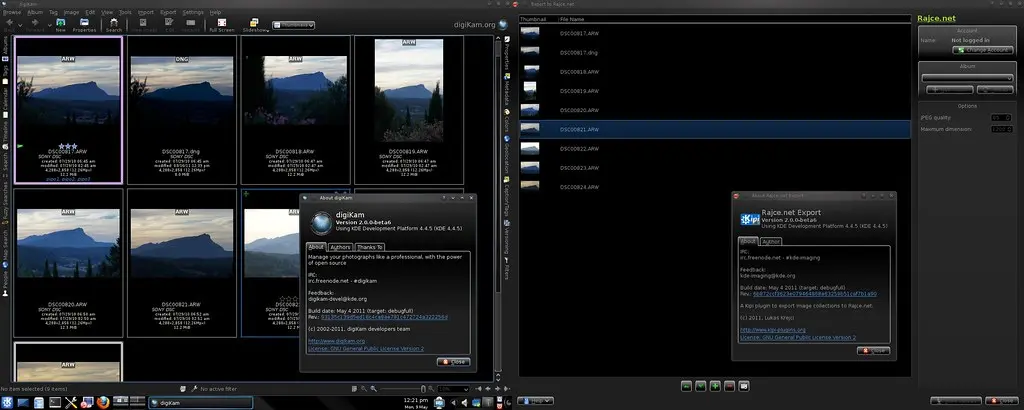
If you are using ubuntu 11.04 and if you are eager to test the upcoming digiKam 2.0 beta releases then you should use Philip Johnson's PPA to install the latest beta of digiKam 2.0.( Continue to read...)