Processing RAW files can be time consuming, in case you have certain amount of RAW files which need to be converted into a more accessible for format within a few minutes , then digiKam's batch RAW converting tool can be very handy and efficient and it takes a few clicks.
digiKam team is proud to announce the digiKam Software Collection 2.0.0 release candidate!
With this release, digiKam include a lots of bugs fixes to progress in stability for future production use. This is the last stage before final release planned at end of July 2011
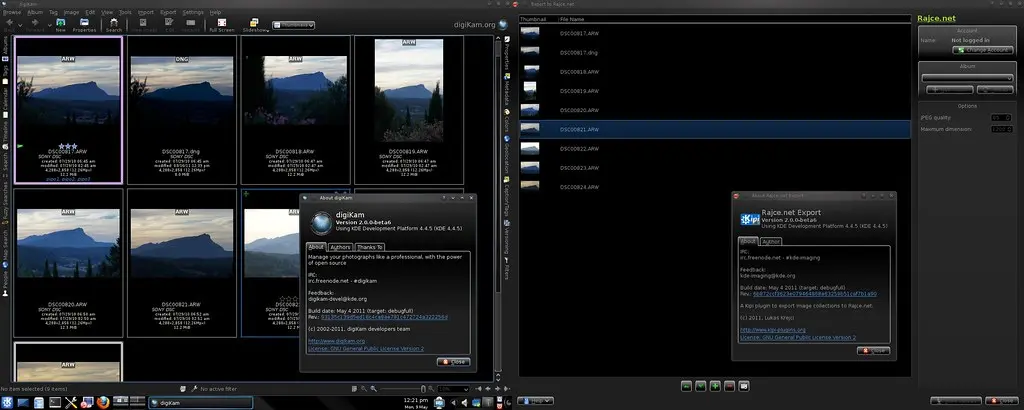
digiKam include since 2.0.0-beta5 a new tool to export on RajCe web service.
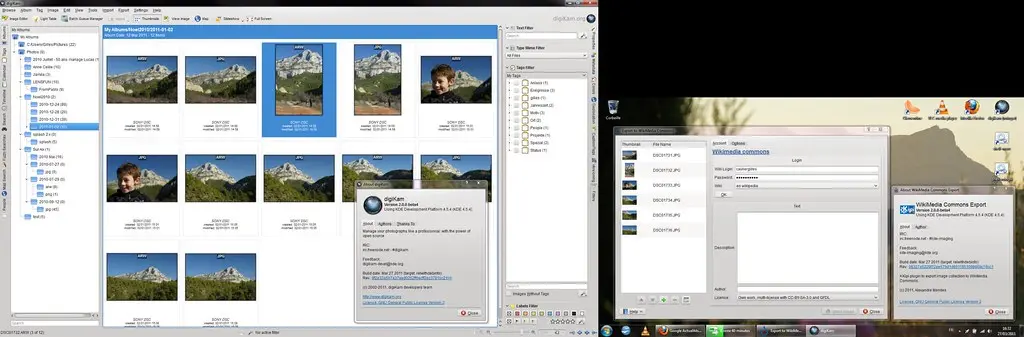
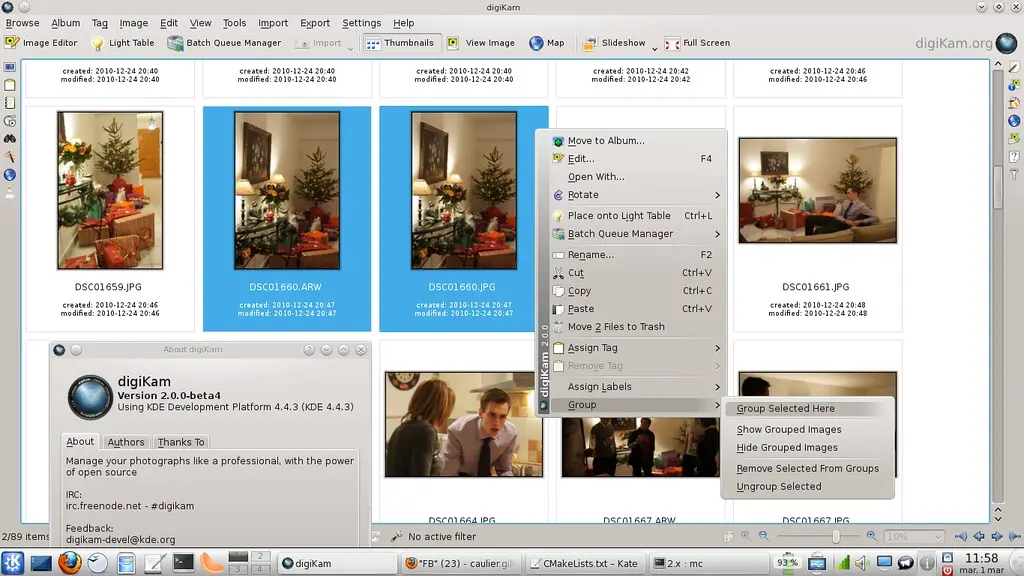
digiKam include since 2.0.0-beta4 Group of items feature and MediaWiki export tool.
Using the commands tucked under the Import menu, you can offload photos from your camera, storage card, or USB stick directly into the application. What's more, the Import dialog box offers a few clever features that allow you to configure the import operation. Continue to read
WorldLabel has kindly agreed to sponsor a competition for the best digiKam tip, where the winner will bag a cool Ubuntu-based Teo Pro netbook from ZaReason.
The main toolbar in digiKam provides quick access to several tools and features, and you can tweak it to fit your particular photographic workflow. To do this, choose the Settings » Configure Toolbars command. This opens the Configure Toolbars dialog window where you can add, remove, and tweak toolbar buttons. Continue to read
digiKam makes it relatively easy to tag photos. Select one or several photos, expand the Caption/Tags right sidebar, tick the tags you want, and press the Apply button. You can also assign keyboard shortcuts to the often-used tags to speed up the tagging process. Continue to read